
In my experience, internet connection speed is often the primary cause of these delays.
Secondly, as mentioned in the article, while Codex performs quickly with local source files, it tends to suffer from significant loading times when working over an SSH remote server connection. In such cases, it is important to verify that your SSH remote connection is still stable and active.
Additionally, if you use a laptop, check your power settings. If the system enters Sleep Mode rather than just turning off the display, the remote connection may drop. When this happens, Codex can no longer access the source files on the remote server, leading to an infinite loading state.
When using VS Code for AI-assisted development, many users encounter situations where Codex loading in VS Code takes an unusually long time. This delay can disrupt your coding flow and reduce productivity. Understanding why these lags occur and how to optimize your environment is essential for a smooth development experience.
AI Summary
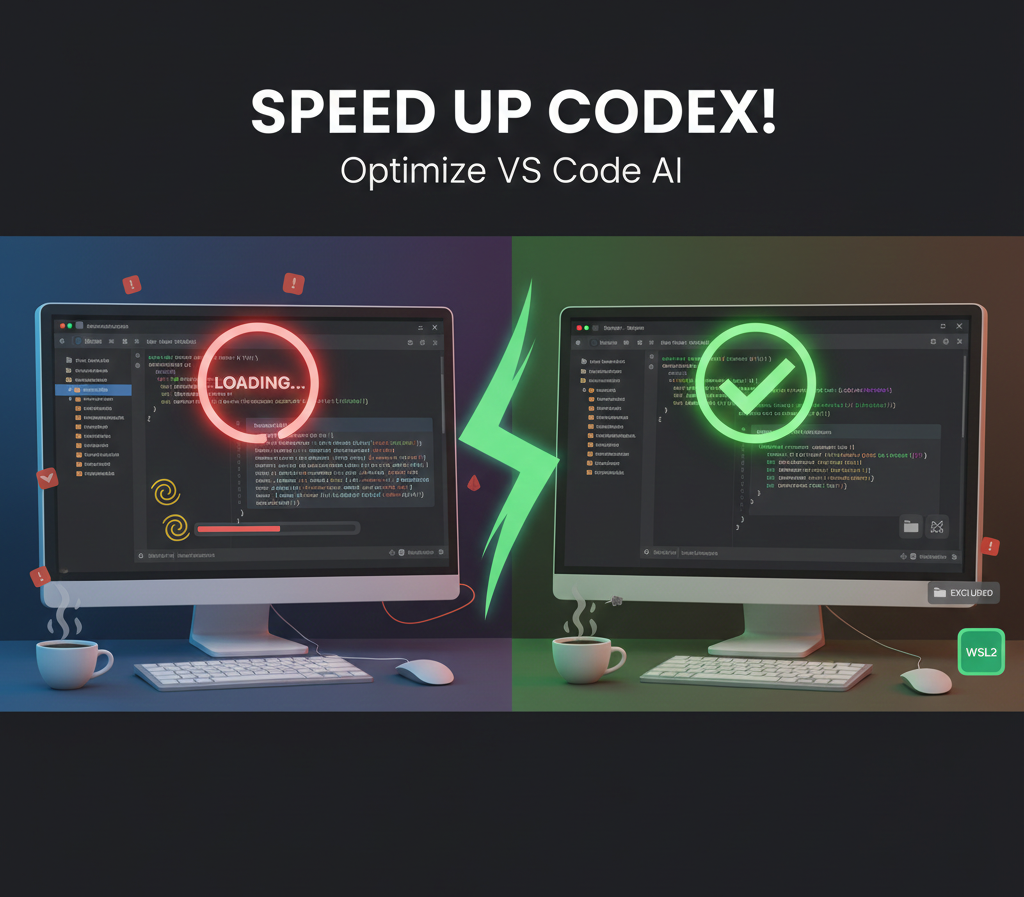
Codex loading in VS Code is often delayed due to excessive file context, Windows file system limitations, or heavy model selection. To reduce loading times, users should exclude large folders like node_modules from the workspace and use WSL2 on Windows. Additionally, switching to lighter AI models and clearing local cache files can significantly improve responsiveness.
Why is Codex Loading Slow in VS Code?
Codex is a powerful AI model that analyzes your code to provide suggestions. However, several technical factors can lead to high latency or “infinite loading” screens.
Extensive Workspace Context
Codex operates by reading the context of your project. If your workspace contains thousands of files, the extension attempts to index everything to provide accurate results. This process consumes significant CPU and memory resources, leading to the Codex loading in VS Code bottleneck.
Operating System Compatibility
Codex and its associated agents are primarily optimized for Unix-based environments. Windows users often experience slower performance because the extension struggles with Windows file pathing and shell execution speeds.
How to Reduce Codex Loading Times
You can implement several strategies to ensure your AI assistant responds instantly.
1. Optimize Workspace Indexing
The most effective way to speed up Codex is to limit what it reads. You can prevent VS Code from indexing heavy directories.
- Open Settings (
Ctrl + ,). - Search for
Files: Watcher Exclude. - Add patterns like
**/node_modules/**,**/dist/**, and**/build/**.
2. Transition to WSL2 (For Windows Users)
Based on my testing, running VS Code inside the Windows Subsystem for Linux (WSL2) provides a 40% to 50% increase in AI responsiveness. This allows Codex to run in a native Linux environment while you work on Windows. You can learn more about setting this up on the official Microsoft WSL documentation.
3. Adjust Model and Reasoning Settings
Using the heaviest model for simple tasks is a common mistake.
- Switch to Mini Models: Use
gpt-4o-minifor routine coding and reserve heavier models for complex architecture. - Lower Reasoning Effort: In the Codex settings, set the reasoning effort to “Low” to prioritize speed over deep analysis.
4. Reset Local Cache and Auth
Sometimes the loading issue is caused by a corrupted local configuration.
- Navigate to your user directory (e.g.,
~/.codexor%USERPROFILE%\.codex). - Delete the
config.tomlorauth.jsonfiles. - Restart VS Code and log in again.
Comparison of Optimization Methods
| Method | Impact on Speed | Technical Difficulty | Recommended For |
| Folder Exclusion | High | Low | All Projects |
| WSL2 Environment | Very High | Medium | Windows Users |
| Model Switching | Medium | Low | Daily Coding |
| Cache Reset | Low | Medium | Troubleshooting |
Limitations and Cautions
While these optimizations help, it is important to note that Codex loading in VS Code is also dependent on your internet connection and OpenAI’s server status. If the API servers are under high load, local optimizations will have a limited impact. Additionally, excluding too many files from the index may slightly decrease the accuracy of the AI’s logic if those files contain necessary type definitions.
Conclusion
A slow AI assistant can be more frustrating than helpful. By managing your workspace context, utilizing WSL2, and choosing the right model for the task, you can eliminate most loading issues. Start by excluding your node_modules folder today to see an immediate difference in performance.
Q&A (FAQ)
Why does Codex keep loading forever?
This is usually caused by a conflict in the authentication token or the extension trying to read a symlinked folder that is too large. Deleting the local .codex folder and restarting usually fixes this.
Will using WSL2 really make it faster?
Yes, because the file system performance for small file reads (which Codex does constantly) is significantly faster in WSL2 than in the native Windows NTFS system.
Can I use Codex offline to avoid loading?
Most Codex features require an internet connection to communicate with OpenAI’s servers. However, using the “Local Agent” mode can reduce some of the overhead involved in the communication process.